Flowcharts
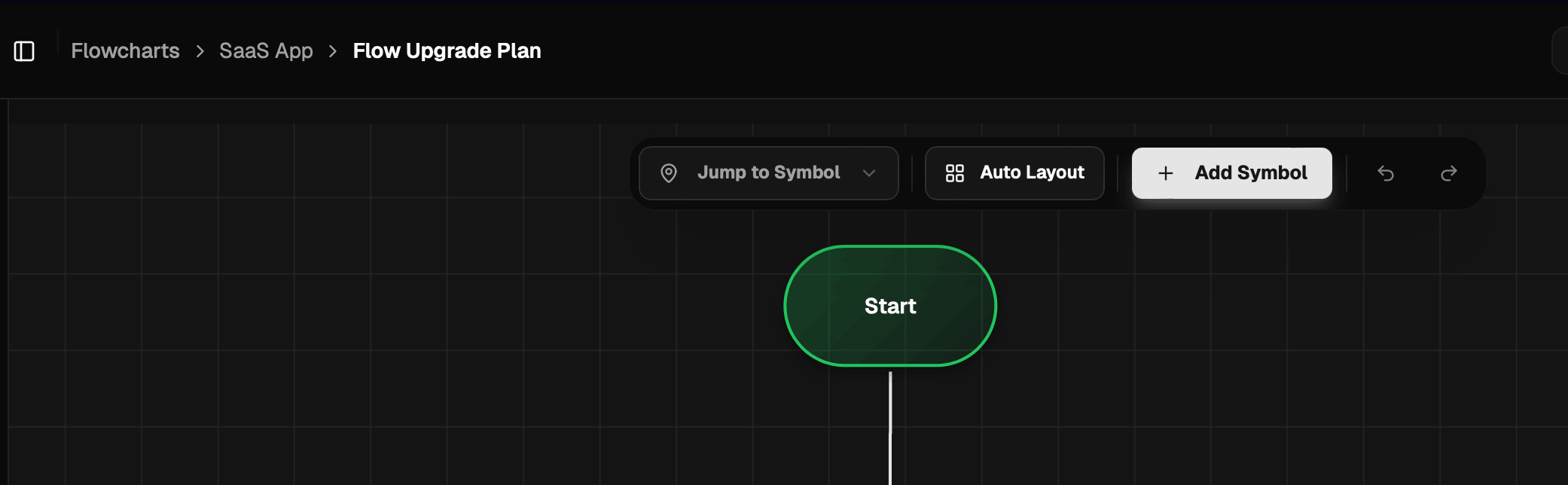
The Flowchart feature is designed specifically to visualize logic flows, business processes, or algorithm sequences in your application.
Flowchart Components
You can use various industry-standard symbols:
- Terminator: Marks the start or end of a flow.
- Process: Steps or technical operations.
- Decision: Branching point (Yes/No).
- Data: Data input or output.
How to Create a Flow
- Add symbols via the Add Symbol menu.
- Connect symbols by dragging connector lines.
- Click on a connector to add label text.
Auto Layout
If your flowchart symbols become messy or overlap, you can use the Auto Layout feature:
- Click the "Auto Layout" icon (grid/layout icon) on the toolbar.
- The system will automatically rearrange the positions of the symbols based on the connection flow, making them neater and easier to read.
Export Flowchart (Experimental)
[!CAUTION] The export feature to image formats (PNG/SVG) or PDF in the Flowchart module is currently in Experimental stage. Make sure to check the export results before using them in official documents.